# Events and notifications
Various events are registered in Eye on Data. They are split into two groups:
- Notifications and faults: everything related to deviations, notifications and alarms.
- System and user log: everything around system processes, settings and user actions.
# 1. Notifications and faults
This category covers notifications and faults that you create manually or that are generated automatically.
# ℹ️ What is the difference between a notification and a fault?
- A notification is an information event (Info), for example a remark or an observation that is added manually.
- A fault is a deviation that requires attention, and falls under one of the following types:
- Warning
- Critical
- Timeout
# 📌 Examples of events
| Type | Description |
|---|---|
| Info event | Manual notification added by a user, with a remark. (Notification) |
| Warning | Generated automatically when a value falls outside the configured limits. (Fault) |
| Critical | Serious deviation, for example a standstill; follow up immediately. (Fault) |
| Timeout | No new data has been received within the expected time. (Fault) |
# 🔔 Setting alarm rules
With alarm rules you can configure warnings for measurements. This way you know immediately when something goes wrong.
# ✅ Creating an alarm rule
- Open the tile for which you want to set an alarm.
- Click the alarm bell at the top right.
- Choose the right measurement (if there are several).
- Set the limit values:
- For example:
Critical High > 50°C,Critical Low < -10°C.
- For example:
- Choose the interval (how often the value is checked).
- Set the check time (how long the deviation has to persist before a notification is sent).
- Click save.
# 📈 Alarm levels
From low to high:
- OK
- Info (Notification)
- Warning (Fault)
- Critical (Fault)
# ⏱️ Timeout alarm
If no new data has been received within a certain time, a timeout alarm is triggered automatically. This is considered a fault.
# 🛠️ Creating tasks from an alarm
When an alarm is active you can start a task straight away to arrange follow-up.
- Go to the Alarm Console.
- Click the pencil next to the alarm.
- Click New task.
- The task is filled in automatically based on the alarm.
# 💤 Masking an alarm
If an alarm is temporarily not relevant (during maintenance, for example), you can mask it.
# Masking an alarm
- Open the Alarm Console.
- Click the pencil next to the alarm.
- Choose Mask.
- Options:
- Mask until a certain time.
- Mask until manually unmasked.
- Add a remark if you wish.
# Removing the masking
- Go to the Masked alarms tab.
- Click the pencil next to the alarm.
- Choose Unmask.
- Add a remark (optional).
ℹ️ Automatic remarks are added when masking expires because of the time limit.
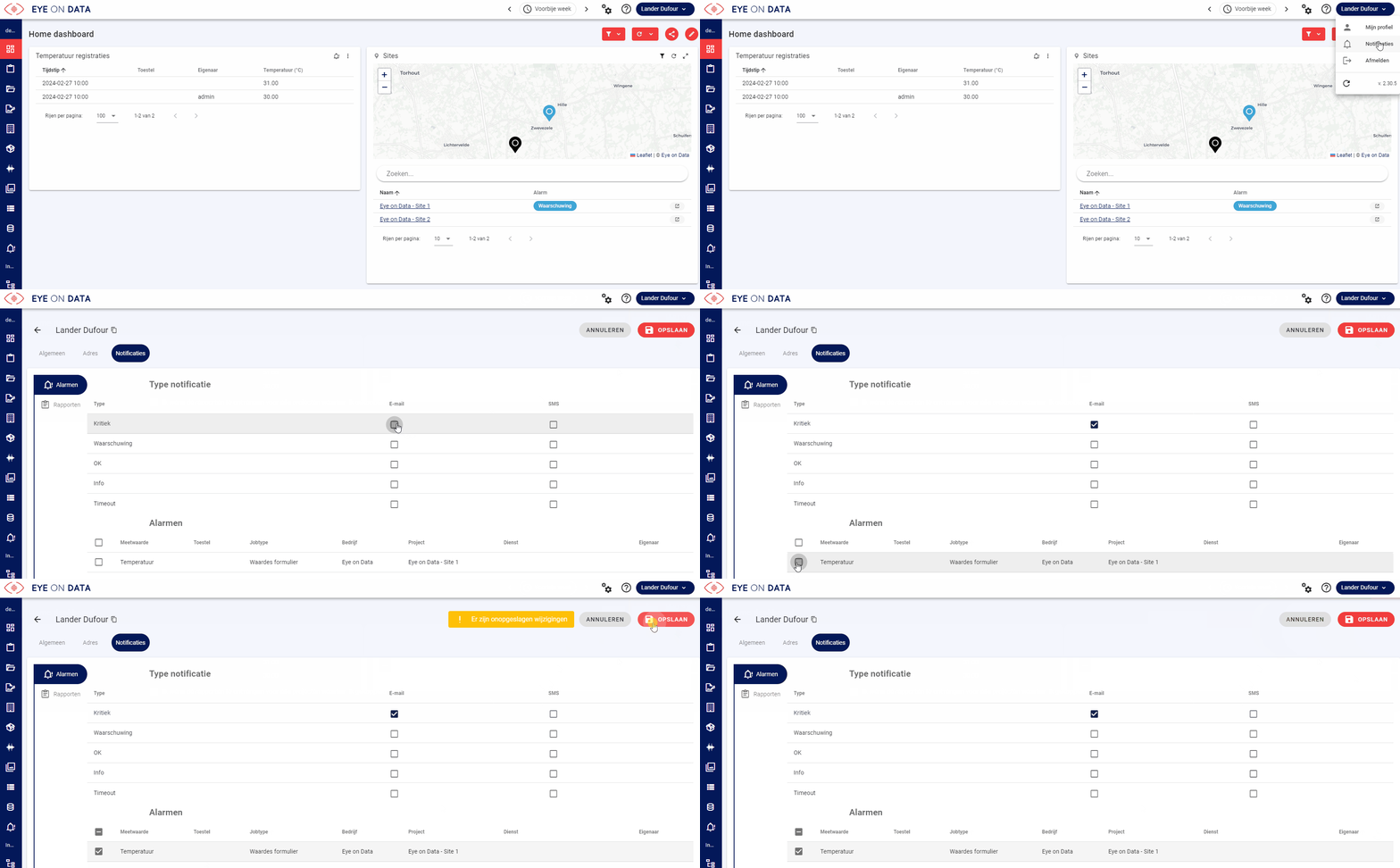
# 📬 Setting notifications
- Click your user name at the top right.
- Go to the Notifications tab.
- Choose:
- Which levels you want to follow (e.g. only Critical).
- For which alarms you want notifications.
- Click Save.
# ✍️ Creating a user event
You can also add a notification or fault yourself:
- Click a measurement in a tile.
- Choose Create event.
- Add your message or remark.
- Select the right level (Info for a notification, Warning/Critical/Timeout for a fault).
- The event appears in the log book and, if applicable, on charts.
# 2. System and user log
These events are recorded automatically by Eye on Data.
# 🖥️ System events
Examples:
- Creating or restoring backups.
- System actions in the background.
# 📝 Audit events
Examples:
- Logging in and logging out.
- Changing settings.
- User management.
# 📊 Event overview
At the bottom of the portal you will find an overview of all events. Every line contains:
| Field | Description |
|---|---|
| Start time | When the event started |
| End time | When it ended (if applicable) |
| Measurement | Sensor or measurement it relates to |
| Value | Value at the start of the event |
| Message | What happened? |
| Type | New, comment, etc. |
| Level | OK, Info, Warning, Critical |
| Status | Active, closed, etc. |
| Data source | Where does the data come from? |
| Comment | Any extra explanation |
| Asset | Device involved |
| Project | What does this belong to? |
| Company | Organisation or customer |
| Component | Specific component of the software |
| User | Who created or changed the event? |
🔄 If an event evolves (e.g. from warning to critical), you see this as a history that you can unfold.