
# Users
A person who uses the Eye on Data platform can be someone working inside the organisation as well as someone from outside it. This person can also be linked to projects of a company. By default there are no projects they are linked to automatically, so they have no access to information about projects. They have to be given permission explicitly in order to gain access.
User profiles are stored in a separate system called IAM. This makes it easy to change or delete profiles. In addition, the data collected by users is pseudonymised.
# My profile
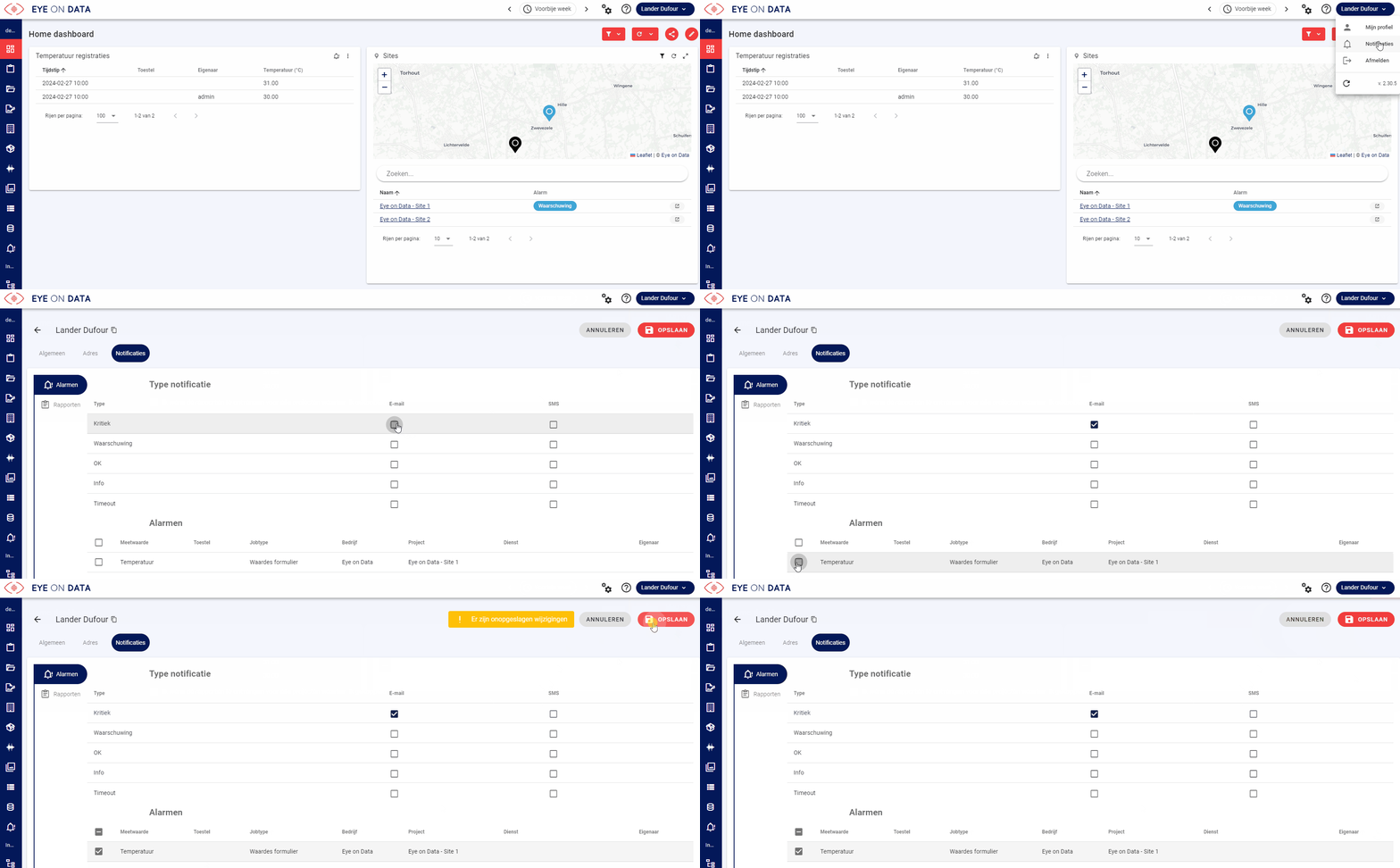
You can view and edit your profile by clicking your user name at the top right and choosing "My profile":
# General
- First name (required)
- Last name (required)
- Job title
- E-mail address (required)
- Phone
- Extra phone
- User name (composed automatically based on first name and last name)
- Notes
# Address
On the Address tab you can complete the following details:
- Street + number
- Postal code
- City/municipality
- Region
- Country
- Remarks
# Notifications
Navigate to the notifications tab to configure the following settings:
- Which type of alarm you want to receive notifications for (critical, warning, OK, Info or Timeout); critical by default.
- Which alarms you want to receive notifications for.
- Whether you want to receive the reports for the projects your account is linked to. As a last step, click save.
# Connections
Connections allow you to synchronise your account with other systems.
# Microsoft
Once you have approved access, the tasks assigned to you in Eye on Data are synchronised to your Outlook calendar.
# Authentication
To log in to the Eye on Data platform, go to organisation.eyeondata.eu and sign in with your user name or e-mail address and your password. If you have linked an SSO account, you can log in directly with the dedicated button.
Various actions, including logging in, are recorded as Eye on Data events and kept temporarily as audit events.
REMARK
A user name and e-mail address have to be unique; if they already exist you get the following error message: A user with the chosen user name/e-mail address already exists!
# Types
Depending on the role assigned, you will find users on one of the following tabs:
# Employees
Employees within your own organisation with one of the following roles: administrator, manager or employee. These users are linked to your own company (organisation).
# Contacts
Contacts outside your own organisation with one of the following roles: guest or responsible. These users are linked to an external company (customer/supplier).
# Teams
One or more employees within the organisation can be added to a team. This makes it possible to link teams to a company and to projects, instead of individual users.
In addition, teams can be used when planning and assigning tasks. Every user has to be assigned to at least one team, but it is also possible to be linked to several teams.
PLEASE NOTE
Every team has one responsible person.
# Roles
Every user is assigned one role; a role determines the rights of the user:
| role | description |
|---|---|
| admin | administrator |
| lead | manager |
| member | employee |
| responsible | responsible |
| contributor | guest |
| connector | data source |
| informant | anonymous guest |
# Administrator
An organisation always has one or more users with the administrator role, who manage the settings of the organisation and the general configuration.
# Manager
A team always has one or more users with the manager role, who follow up projects and manage the configuration of the project.
# Employee
A team optionally has one or more users who collaborate on the project. These users can consult and add all information to the project, but cannot carry out configuration.
# Data source
A project optionally has one or more data sources involved in the project. These users or devices can consult limited information about the project and add data, but cannot carry out configuration.
# Responsible
A project optionally has one or more contacts involved in the project. Besides consulting information, these users can also add data and guest users.
# Guest
A project optionally has one or more contacts involved in the project. These users can only consult limited information about the project, and complete and consult assigned tasks.
# Informant
A project optionally has informants who are only involved in the project for one specific task. These anonymous users can only carry out, consult and adjust that task through the mobile application (by means of a URL and a code).
# Rights
* : GDPR: can only request and change information about themselves. ** : filling in a questionnaire anonymously.
Legend
- C : Create
- R : Read
- U : Update
- D : Delete
- r : Search (limited to name, description, type and to components linked to the user)
REMARK
Only for the administrator are the rights applied to the entire platform. For the other roles these rights are only applied to the projects linked to the user. Depending on the licence, components may or may not be available.
REMARK
If you navigate as a user to a module or dashboard you do not have rights on, an error page (403) is shown.
| Permission | Module | Component | Administrator | Manager | Employee | Data source | Guest | Anonymous guest |
|---|---|---|---|---|---|---|---|---|
| dashboards | Dashboards | Dashboards | CRUD | R | R | R | R | - |
| dashboards.reports | Dashboards | Report | CRD | CR | R | R | R | - |
| requests | Dashboards | Control | CRUD | CRUD | CRU | CRU | RU | U |
| tasks.jobs | Tasks | Tasks (list) | CRUD | CRUD | CRU | - | - | - |
| responses | Tasks | Answer | CRUD | CRUD | CRU | CRU | RU | U |
| responses.timetracking | Answer | Timetracking | CRUD | CRUD | CRU | - | - | - |
| responses.reports | Tasks | Report | CRD | CR | R | R | R | - |
| tasks.planning | Tasks | Planning | CRUD | CRUD | CRU | - | - | - |
| tasks.task | Tasks | Workflow instances | CRUD | CRUD | CRU | - | - | - |
| tasks | Tasks | Routes | CRUD | CRUD | CRU | - | - | - |
| tasktypes | Workflows | Workflow processes | CRUD | CRU | - | - | - | - |
| jobtypes | Job types | Job types | CRUD | CRU | - | - | - | - |
| projects | Projects | Projects | CRUD | CRU | R | - | - | - |
| services | Services | Services | CRUD | CRU | R | r | r | r |
| servicetypes | Services | Service types | CRUD | RU | R | - | - | - |
| companies | Companies | Companies | CRUD | CRU | R | r | r | r |
| products.articles | Materials | Articles | CRUD | CRUD | CRU | - | - | - |
| products.devices | Materials | Devices | CRUD | CRUD | CRU | - | - | - |
| products.tools | Materials | Tools | CRUD | CRUD | CRU | - | - | - |
| producttypes | Materials | Product types | CRUD | CRUD | CRU | - | - | - |
| measurementtypes | Measurements | Measurements | CRUD | CRU | - | - | - | - |
| storageobjects | Storage | Storage | CRUD | CR | CR | - | - | - |
| lists | Lists | Lists | CRUD | CR | CR | - | - | - |
| listItems | Lists | List items | CRUD | CR | CR | - | - | - |
| queries | Queries | Queries | CRUD | CR | CR | - | - | - |
| depots | Depots | Depots | CRUD | CR | CR | - | - | - |
| vehicles | Vehicles | Vehicles | CRUD | CR | CR | - | - | - |
| organization.settings | Organisation | Settings | RU | - | - | - | - | - |
| users.employees | Organisation | Employees | CRUD | RU* | RU* | - | - | - |
| groups | Organisation | Teams | CRUD | RU* | RU* | - | - | - |
| users.informants | Organisation | Contacts | CRUD | CRUD | CRU | - | - | - |
| users.contributors | Organisation | Data sources | CRUD | RU* | RU* | - | - | - |
| organization.integrations | Organisation | Connections | CRUD | RU* | RU* | - | - | - |
| mobile.calendar | Home | Calendar | CRUD | R | R | R | R | - |
| mobile.projects | Home | Projects | CRUD | R | R | R | R | - |
| mobile.dashboards | Home | Dashboards | CRUD | R | R | R | R | - |
| mobile.timetracking | Tasks | Timetracking | CRUD | CRUD | CRU | - | - | - |
| mobile.jobs | Tasks | Tasks | CRUD | CRUD | CRU | - | - | - |
REMARK
For dashboards and reports, creating, changing, adjusting and deleting means linking an existing dashboard or report type (template) to an object. For dashboard types and report types it means creating, changing, adjusting and deleting a dashboard or report type (template). Note that dashboards and reports are not only available in these modules, but also on the objects, e.g. the dashboards tab of a project.
# FAQ
# How do I add an internal user (employee)?
A user can be added in the following ways:
- Manually, by clicking add on the Employees tab in the Organisation, Companies or Projects modules.
- By importing, by clicking import on the Employees tab in the Organisation, Companies or Projects modules.
# How do I add a guest (contact)?
A guest can be added in the following ways:
- Manually, by clicking add on the Contacts tab in the Projects module.
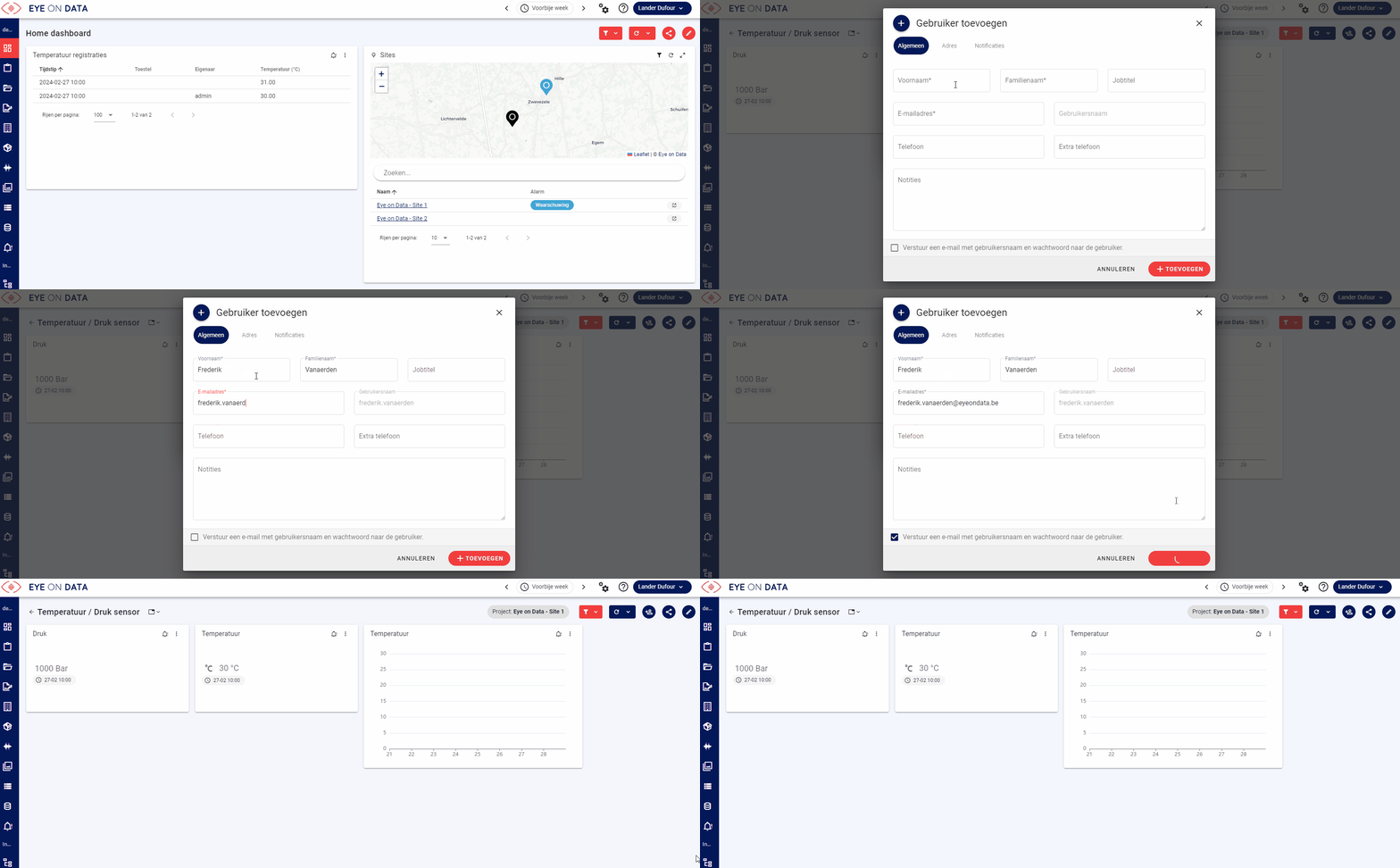
- Manually, from the dashboard (see the instruction video below).
The following details can be filled in:
- First name (required)
- Last name (required)
- Job title
- E-mail address (required)
- Phone
- Extra phone
- User name (composed automatically based on first name and last name)
- Remarks
- Address
In the background, the guest role is assigned automatically.
Watch the instruction video below to see how to add and invite guests from a dashboard:
# Linking an existing user
If you add a guest user who already exists, you get an error message saying that the user name and/or e-mail is already in use. While adding a user to a dashboard, you are immediately offered the suggestion to link the existing user.
# How can I request a new password?
These steps let you create a new password safely and quickly and restore access to your account. Make sure you choose a strong password to protect your account.
Forgot password - this is how you create a new password:
- Forgot password link:
- Click "Forgot password" below the login screen.
- Enter your registered e-mail address and click "Send".
- E-mail verification:
- Check your e-mail and click the confirmation link you received.
- Make sure the link is activated within the stated time.
- Password recovery page:
- Follow the link to go to the password recovery page.
- Enter a new password that meets the stated security requirements.
- Save and log in:
- Click "Save" to confirm the new password.
- Go to the login screen and log in with your updated credentials.
# How do I assign a role to a user?
When you create a user it is mandatory to assign a role. As an admin user you can select a user in the Organisation module, Users tab. In the next window you can change the role.
# How do I delete a user?
If you have the right permissions, you can delete a user from the platform by clicking the delete icon next to their name. Keep in mind that all data collected by this user on the Eye on Data platform remains available, but is no longer linked to a specific user profile.
Since the collected data is now decoupled from the user profile, the entire profile is deleted.
REMARK
Deleting a user is irreversible. After deleting a user it is possible to create a new user with the same user name and e-mail address, but this has to be considered as creating an entirely new account.
# How do I link/unlink a user to a project or company?
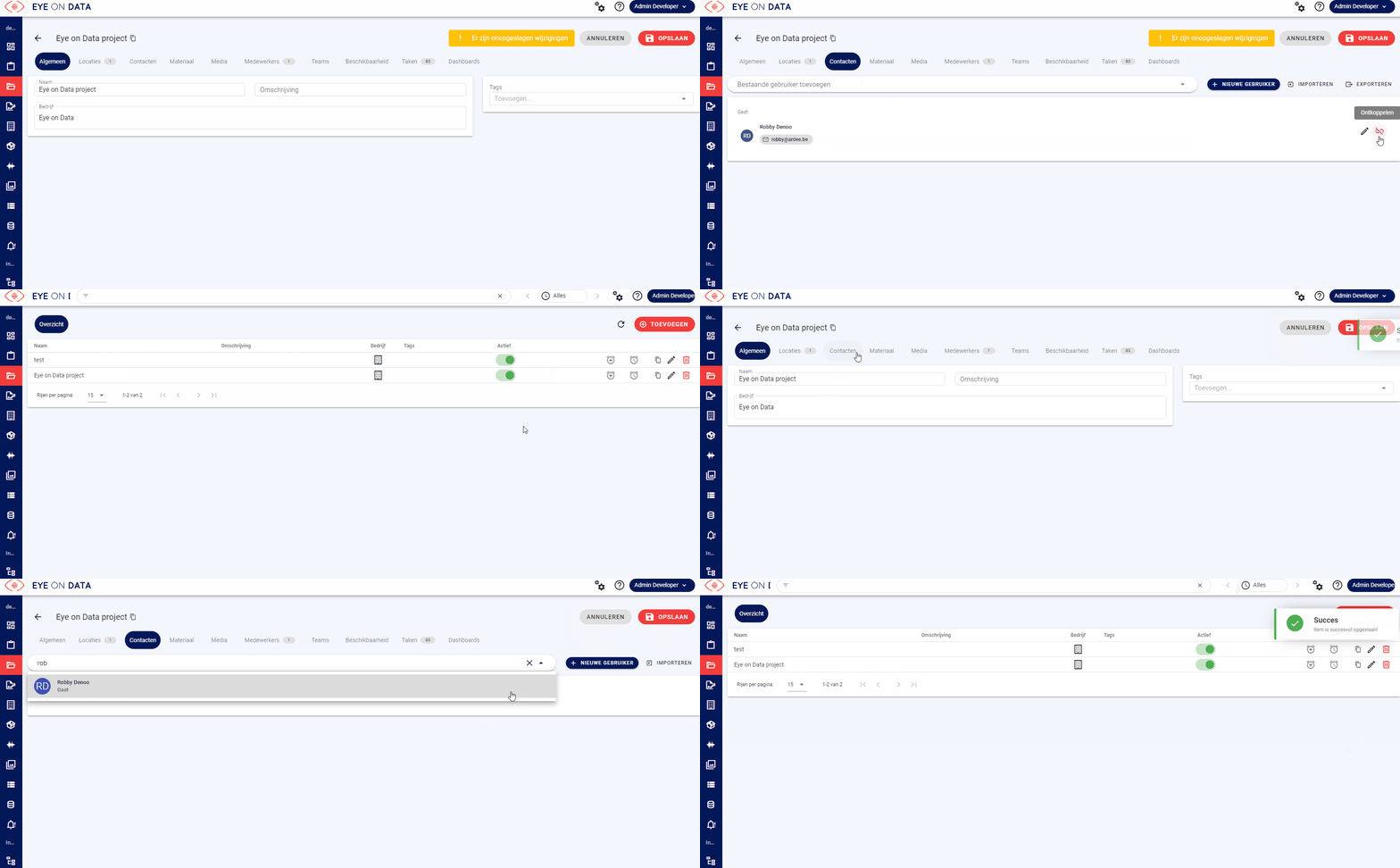
On the employees tab (internal users) or contacts tab (external users) of the project or company you can link and unlink users.
# What is the difference between a team and a squad?
Internal users are permanently organised in teams with one or more managers and employees. In addition, for a specific assignment a number of users with the necessary skills from one or more teams can be grouped temporarily in a squad.
# How do I import users?
As an admin user you can import in the Organisation module, Users tab, or in the Companies or Projects modules, contacts tab (external) or employees tab (internal), by clicking import.
# How do I link a user to a company or project?
During the import, only the general information and address information can be uploaded. It is not possible to link a user to one or more companies or projects during an import from the Organisation module; this is possible when you create or import a user manually from the Companies and Projects modules.
If you want to link users to a company or project during the import, navigate to the company or the project in the Companies or Projects module and import the employees or contacts through those modules. These users are then linked automatically.
# Values for importing users
| Setting | Field | Description |
|---|---|---|
| user.id | id | you can leave this number empty when adding new users, or keep the number from an export file in order to change an existing user. |
| user.username | username | user name. |
| user.role | user role | the user role you want to link the user to. |
| user.jobtitle | job title | function of the user. |
| user.given_name | given name | first name |
| user.family_name | family name | |
| user.middle_name | middle name | |
| user.nick_name | nick name | |
| user.phone_number | phone number | |
| user.email | ||
| user.birthdate | birthdate | |
| user.gender | gender | [M, F] |
| user.language | language | preferred language for the user interface and reports |
| user.locale | locale | LCID string |
| user.iban | International Bank Account Number | |
| user.bic | Business Identifier Code | |
| address.country | country | 2-letter ISO code |
| address.locality | locality | |
| address.postal_code | postal code | |
| address.region | region | |
| address.street_address | street address | |
| user.notes | notes | |
| user.extra_email | extra email | extra email addresses |
| user.extra_phone | extra phone number | extra phone numbers |
# Permitted values
| Type | Value |
|---|---|
| Date | format YYYY-MM-DD |
Value
| id | username | user role | job title | given name | family name | middle name | nick name | phone number | birthdate | gender | locale | IBAN | BIC | country | locality | postal code | region | street address | notes | |
|---|---|---|---|---|---|---|---|---|---|---|---|---|---|---|---|---|---|---|---|---|
| Lander | contributor | Project leader | Lander | Dufour | LDU | +32472517249 | lander@eyeondata.be | 2020-01-01 | M | nl-BE | Belgium | Zwevezele | 8750 | West-Vlaanderen | Kleistraat 2 |